
The Slaide Web App: Cloud Decks and Version History
Keep your decks in the browser, save them to the cloud as you type, go back to an earlier version, and download a deck as .slaidec, PowerPoint or PDF.
The Slaide web app keeps your decks in the cloud. You open a deck on any computer, edit it, and it saves itself. If you want an earlier version back, you can restore it.
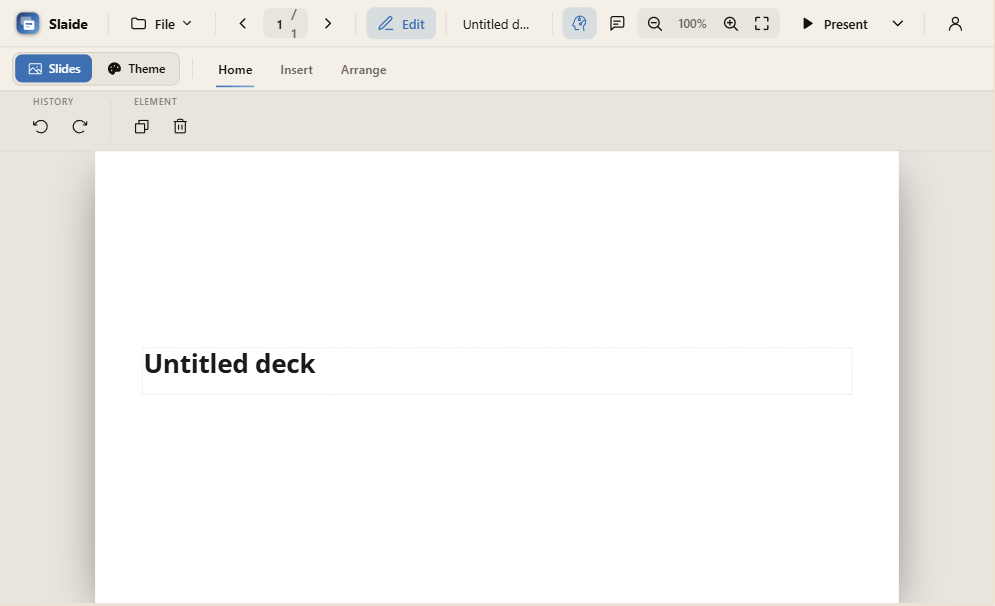
For the first deck and the AI chat, start with the Tutorial. This page covers what the web app keeps for you.
Open a deck from the cloud
- Sign in to the web app at app.getslaide.com.
- Open Your decks.
- Click a deck. The editor opens with the slide in the center and the AI chat on the right.
You can collapse the chat to get more room for the slide.
Your changes save themselves
Text and picture edits save automatically. You do not press Save. If a cloud save fails, the app shows you the error. A replaced picture saves at once.
Go back to an earlier version
The app keeps the saved versions of a cloud deck. Restoring one never deletes your newer work.
- Open the File menu.
- Click Version history.
- Select a version in the list. A preview of that version shows next to the list.
- Click Restore and confirm.
Restore writes the old content forward as a new version. The version it replaces stays in the list, so you can go back again.
Each version carries a short label. An AI tag means the AI edited the deck. No label means an autosave. A label such as restored from v12 means a rollback.
Download a deck
Click Download, next to Present. Choose one of these formats:
- .slaidec: one file with the deck, the design, and every picture.
- PowerPoint (.pptx): speaker notes go into the PowerPoint notes pane.
Keep your pictures in a media library
The media library holds your pictures in folders. Open it from the ribbon or from the chat attach button.
- Add pictures or a folder.
- Sort them into folders with the folder tabs.
- To limit the AI, open the panel What the AI may use and tick the folders it may choose from.
The limit applies to what the AI picks on its own. When you place a picture by hand, you can still use every folder.
Use a spreadsheet as the data for a deck
You can attach a .csv, .tsv, .xlsx, .xls or .xlsm file to the AI chat. The AI reads the rows and the column totals and builds the deck from your numbers.
Next
- Share a deck with a view-only link.
- Build a deck with the AI.
- Prices are in the pricing section.